Showing posts with label Vista Tricks. Show all posts

12 June 2010

Enable hidden built in administrator account in Windows Vista


Windows Vista has a Hidden administrator account which can be used to run any application with administrator privilege without the annoying UAC control.

here are the steps to enable it...

*Click on start menu
* Type "cmd" on search bar
* Select cmd, right click and select "Run as Administrator" option
* Now in cmd prompt
type: 'net user administrator /active:yes',
then press enter

Now you have activated the admin account.

To disable

* Just type: 'net user administrator /active:no'
* press enter

Done Thats it.....Rep me for Queries...

28 June 2009

Aborting a shutdown process.

For aborting a shutdown process, here are the steps.

1. Right click on your desktop and choose New option.

2. Then choose Shortcut from the popped window.

3. In the location tab browse to the root folder of your system for selecting shutdown file,

the location could be somewhat like “C:\Windows\System32\shutdown.exe”

4. After selecting the file, type “-a” at the end.

5. The argument “-a” denotes abort.

6. Finally click on the Finish button to create the shortcut.

For tutorial download the demo file for the above steps from the below link.

DOWNLOAD

That’s it now using this you could abort a shutdown process that is clicked unknowingly.

27 June 2009

Creating a shortcut for shutdown.

Here I’ll tell you all how to shut your system with a single click, for those who wish to reduce the number of mouse click to turn off.

1. 1. Right click on your desktop and choose New option.

2. 2.Then choose Shortcut from the popped window.

3. 3.In the location tab browse to the root folder of your system for selecting shutdown file, the location could be somewhat like “C:\Windows\System32\shutdown.exe”

4. 4.After selecting the file type “-s –t -10” at the end of the file name.

5. 5.Or else you just type “shutdown.exe –s –t 10” in the location tab.

6. 6.The arguments “-s” and “-t” indicates shutdown and time interval.

7. 7.The time interval is specified in seconds you can alter according to your wish.

8. 8.Finally click on the Finish button to create the shortcut.

For tutorial download the demo file for the above steps from the below link

DOWNLOAD

Now you are done.

24 June 2009

Installing Windows XP on a pre-installed VISTA Computer.


There is a simple way to install XP on a pre installed Vista. Here are the simple steps to do that.

Follow the given steps one by one.

1. The first step is to create a separate partition for XP, this can be done using ShrinkVolume feature in Vista.

SHRINK PROCEDURE:

· Open the Computer Management panel, which you can find under Administrative tools or by right-clicking the Computer item in the start menu and choosing Manage

· Find the Disk Management item in the list and select that.
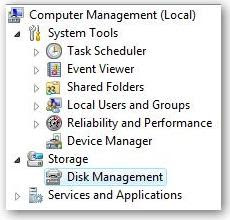
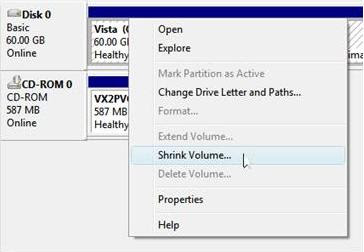
· Now shrink your volume by right-clicking on the main hard drive and choosing Shrink Volume

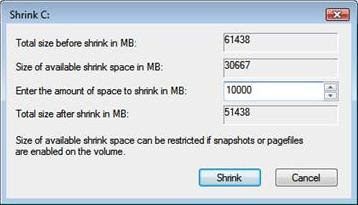
· Now choose the size that you want to shrink according to your requirement. Minimum of 10GB can be chosen for ease of use.
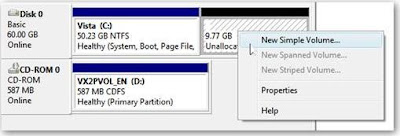
· Now create a new partition for XP in the unallocated space and rename the partition as XP to avoid confusion
2. Now you'll have to pop your XP CD into the drive and bootoff it. You may have to configure your BIOS to enable booting off the CD drive.

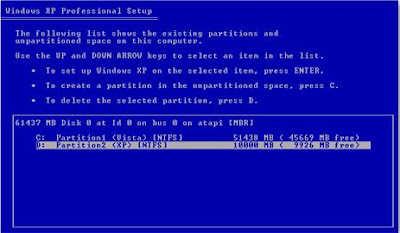
3. Once you come to the screen where you can choose the partition to install on, and then choose the new partition you created. Whatever you do, don't try and install it onto your Vista partition.
4. After XP is completely installed at this point, and you will have lost your ability to boot into Windows Vista, so we'll need to use the VistaBootPro utility to restore the Vista boot loader.

Download and install VistaBootPro from vistabootpro.org

Or click on the below link for direct download.

VistaBootPro DOWNLOAD

5. During the install you'll be forced to install the .NET 2.0 framework.

Download the .NET 2.0 framework from here

Download

6. After installing it Open up VistaBootPRO and then click on the System Boot loader tab. Check the "Windows Vista Boot loader" and then "All Drives" radio buttons, and then click on the Install Boot loader button.
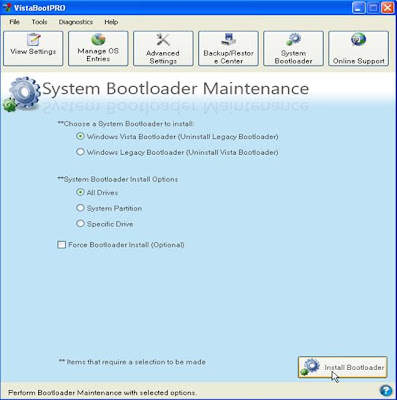
7. Now the Windows Vista boot loader is installed and you'll only be able to boot into Vista, to fix that just click the Diagnostics menu item and then choose Run Diagnostics from the menu.
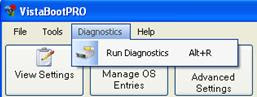

8. This will scan your computer and then automatically fill in the XP version... click on the "Manage OSEntries" tab and then click in the textbox for Rename OS Entry, and name it something like "Windows XP".
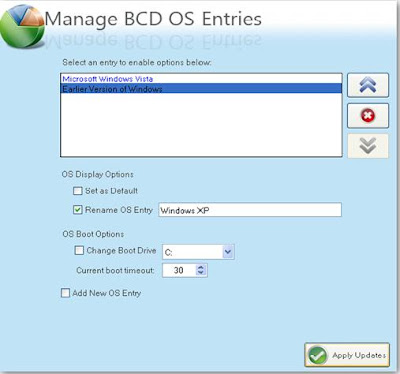
Click the Apply Updates button and then reboot your computer… you should see your shiny new boot manager with both operating systems in the list.

Alternative for step 7 and 8:

Instead of doing those steps you can try these steps.

1. Open up VistaBootPRO, click on the Manage OS Entries tab.

2. Tick the check box ADD NEW OS ENTRY.
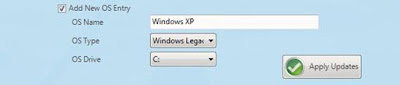
3. Give the appropriate OS NAME in the first tab.

4. Select Vista legacy in the OS Type.

5. Select the OS drive where the Vista OS is installed probably be C:

6. Click on Apply Updates button and then reboot your computer.

Now you can boot into both the XP and VISTA....Enjoy

Restore RUN command in VISTA start menu

To restore RUN command in vista’s start menu follow the steps given.

· * Click the START MENU and RIGHT CLICK at a blank space in the menu to get PROPERTIES.

· * Click on the PROPERTIES OPTION and a properties window will be popped up.

· *Or RIGHT CLICK on the TASK BAR and select PROPERTIES.

· *After that click on the START MENU TAB.

· *Select CUSTOMIZE option in the start menu tab.

· *Scroll to the end to reach the option RUN COMMAND.

· *TICK the CHECKBOX and it’s done.

Now you can see the run command in your start menu.

19 June 2009

Hidden Vista Feature

“Checkbox Feature”

For selecting multiple files we generally use the trick of holding ctrl key and selecting items, this becomes little tedious if you’re working with a long list of files. Vista has a check box feature instead of holding ctrl you can use this option. For accessing this option here are the steps:

1 1. Open any System window like My Computer or Explorer.

2 2. Click the ORGANIZE menu on the top left below the menu bar.

3 3. Then select Folders and Search options.

4 4. Next, click on the VIEW tab.

5 5. Now scroll down to the end to see an option Use Check boxes to select items.

6 6. Enable it and click OK.

It’s done. Now whenever you move your cursor over a file you can see a check box appearing at the top left corner, using this you can select multiple files with ease.